Depending on the settings of your browser, an action such as reserving or copying materials or applying for an inter-library loan (ILL) will trigger the pop-up blocker, which will prevent you from proceeding any further.
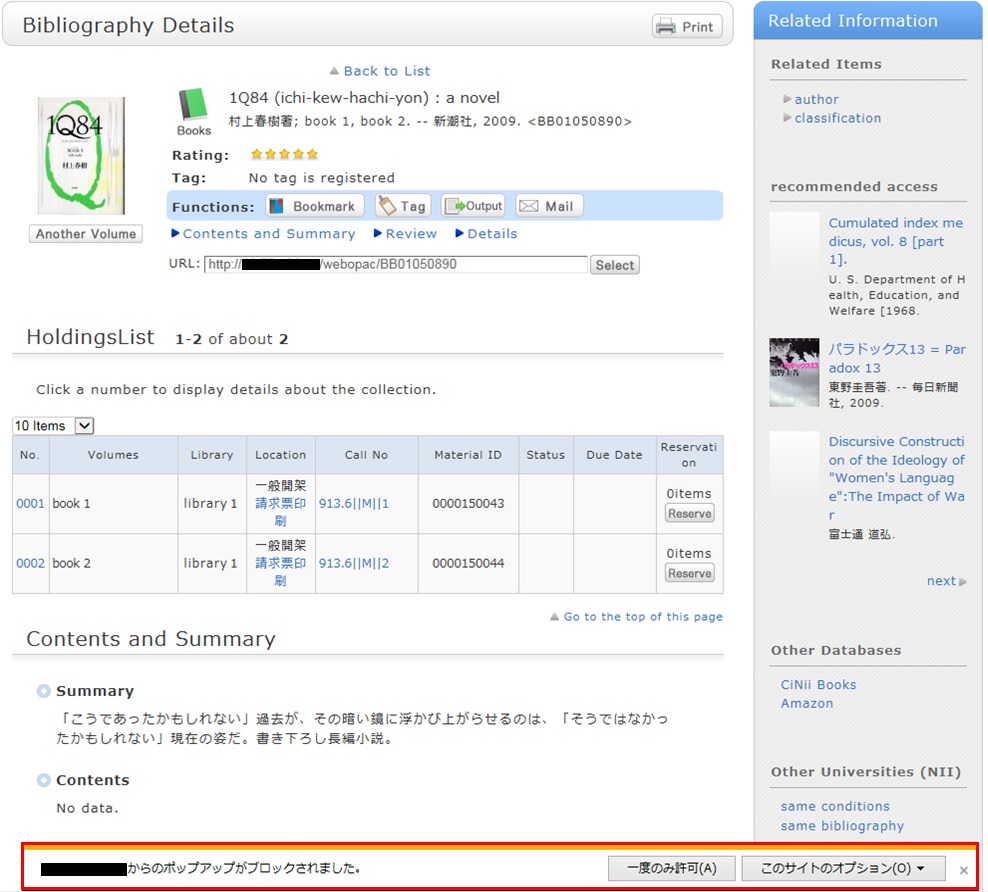
* The screenshot is from Internet Explorer 9.
The pop-up blocker appears in different locations depending on your browser and version.
For details, see the help of the respective browser.
The pop-up screen is used for all applications from OPAC,
such as for a reservation, ILL, or new arrival alert.
Therefore, enable pop-ups by using the following method.
(The descriptions apply to Internet Explorer 9.)
●Always allowing the pop-up blocker
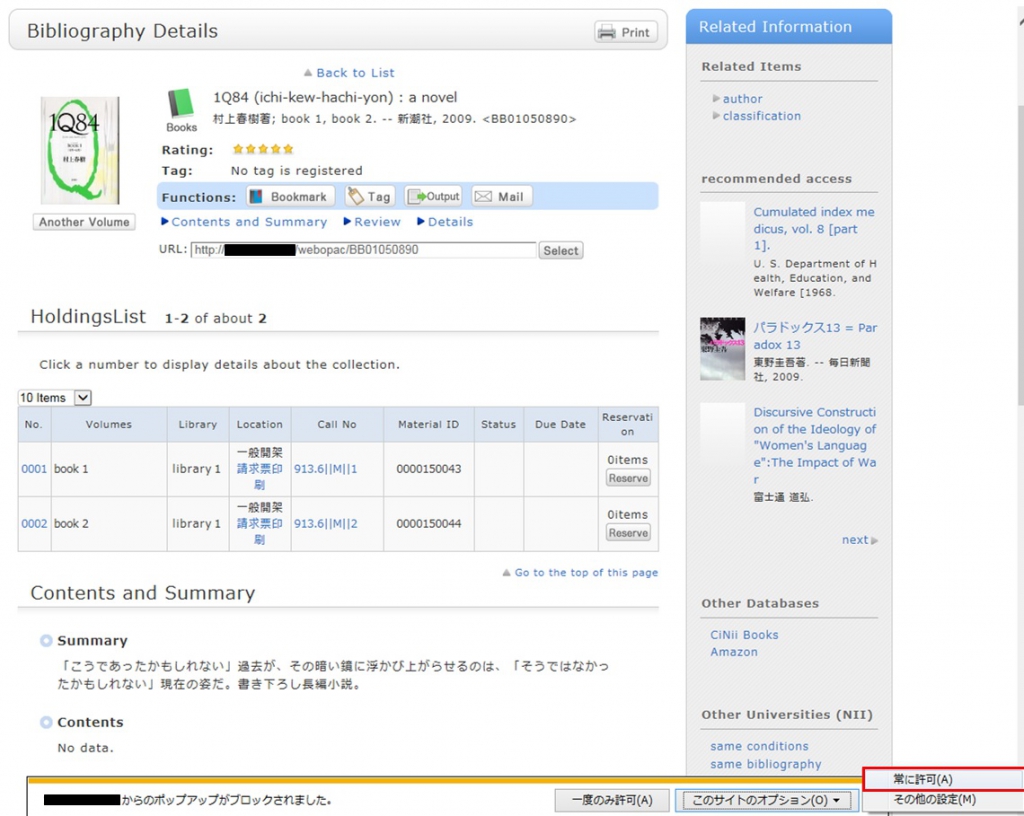
Click "Always allow" from [Options for this site] on the pop-up blocker notification bar.
(Depending on the browser version, click the notification bar, and select "Always Allow Pop-ups from This Site.")
* Even with the pop-up blocker enabled, some notification bars may not appear.
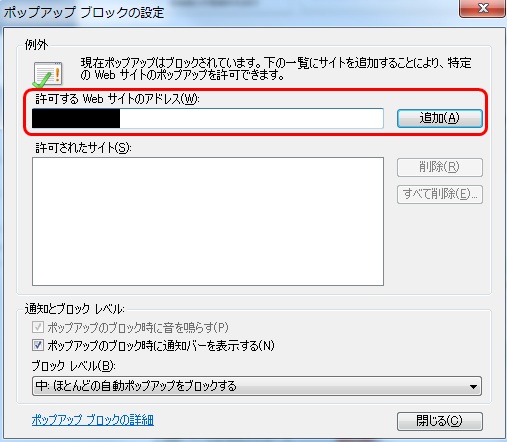
In such cases, select [Tools] -> [Pop-up Blocker] -> [Pop-up Blocker Settings] from the browser menu.
Then, enter the website address to be unblocked in "Address of website to allow," and click [Add]. Click [Close] to exit the screen.
* Safari users are requested to go to Security in the browser settings menu to confirm that no check mark is entered in the "Block Pop-up Windows" check box.
* If you are a Google Chrome user, click here.
After enabling pop-ups as described above, repeat the procedure for your application from the beginning.
* Safari users are requested to go to Security in the browser settings menu to confirm that no check mark is entered in the "Block Pop-up Windows" check box.
* If you are a Google Chrome user, click here.
After enabling pop-ups as described above, repeat the procedure for your application from the beginning.


